

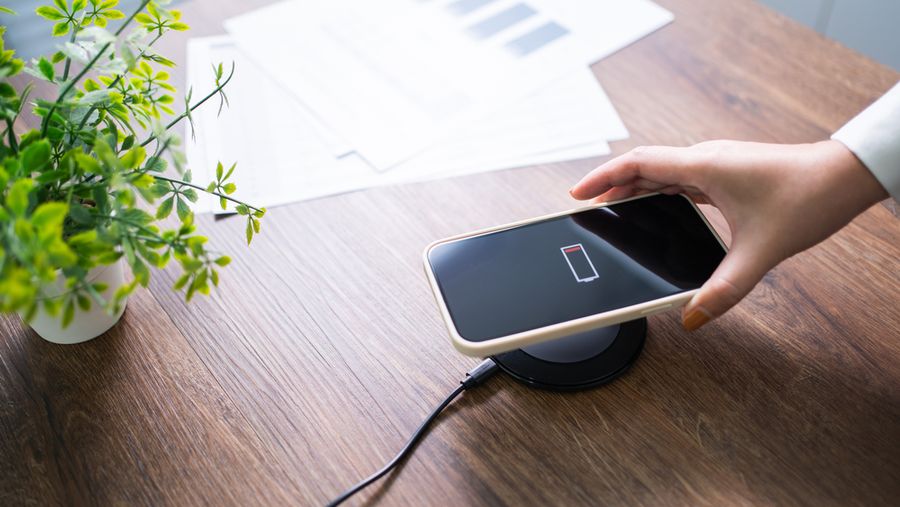
Few things are more annoying than watching your phone battery drop faster than expected, especially when you’re nowhere near a charger. Streaming, bright screens, background apps, location services, and poor signal can all use more power than you might realize. The good news is that extending battery life usually doesn’t require major changes. A few adjustments to everyday settings and habits can help your phone stay powered longer and reduce how often you need to reach for the charging cable.
Turn Down Your Screen Brightness
Your screen is one of the biggest users of battery power, especially when brightness is turned up high. Lowering the brightness to a comfortable level can make a noticeable difference during the day. Most phones also offer automatic or adaptive brightness, which adjusts the display based on surrounding light and can help prevent the screen from staying brighter than necessary.
You can also shorten the amount of time your screen stays on after you stop using it. Setting the screen timeout to 30 seconds or a minute prevents the display from remaining lit when you've already put the phone down. Dark mode may help reduce power use on phones with certain types of displays as well. Small screen adjustments are easy to make and usually don't interfere with everyday use.
Limit Apps Running in the Background
Some apps continue working even when you aren't actively using them. They may refresh content, check for notifications, track location, upload photos, or perform other tasks behind the scenes. All of that activity can slowly drain your battery throughout the day, particularly if several apps are doing it at once.
Check your phone's battery settings to see which apps are using the most power. If an app is consuming more battery than expected, consider limiting its background activity or changing how often it can refresh. You can also uninstall apps you rarely use. There's no need to constantly close every app manually, but reducing unnecessary background activity can help keep power from being wasted on services you don't actually need.
Be Selective With Location Services
Maps, weather apps, fitness trackers, social media, and other services may request access to your location. Location features are useful, but allowing every app to track you continuously can contribute to battery drain. Review your location permissions and decide which apps genuinely need access throughout the day.
For many apps, choosing an option such as allowing location access only while you're using the app is enough. You may also be able to turn off precise location when an approximate location will work just as well. Don't disable location features you regularly depend on simply to save a little battery. Instead, focus on apps that don't have a clear reason to know where you are when they're running in the background.
Use Battery-Saving Mode When You Need It
Most modern phones include a low-power or battery-saver mode designed to stretch the remaining charge. Depending on your device, the setting may reduce background activity, limit certain visual effects, lower performance, or make other temporary adjustments. It can be especially useful when your battery is getting low, and you know you won't have access to a charger for a while.
You don't have to wait until your battery is almost empty to turn the feature on. If you have a long travel day, expect to be away from an outlet, or simply want to conserve power, activating battery-saving mode earlier can help. Some phones can also turn it on automatically once the battery reaches a percentage you choose, making it easier to conserve power without thinking about it.
Watch Your Signal and Wireless Connections
Your phone can use additional power when it's constantly searching for a reliable cellular signal. If you're in an area with poor reception, such as a basement, remote location, or large building, the device may work harder to stay connected. That can cause the battery to drain faster than usual even when you aren't actively using your phone.
When you don't need a cellular connection, airplane mode can help conserve power in areas with little or no service. Wi-Fi may also use less power than relying on a weak cellular connection when a trusted network is available. Bluetooth generally doesn't need to be switched off constantly, but disconnecting accessories you aren't using can reduce unnecessary activity. Managing connections based on your surroundings can help stretch a charge further.
Protect Your Battery From Excessive Heat
Heat can affect both how your phone performs and the long-term health of its battery. Avoid leaving your device in a hot car, on a sunny windowsill, or anywhere else where temperatures can rise significantly. Phones may also get warmer while charging, gaming, streaming video, or performing other demanding tasks.
If your phone feels unusually hot while charging, remove it from direct sunlight and give it a chance to cool. A thick case may trap extra heat during charging, so taking it off temporarily can help in some situations. You don't need to obsess over keeping the battery at a particular percentage every day. Instead, focus on avoiding excessive heat and using reliable charging equipment. Good charging habits can help the battery maintain its capacity as the phone gets older.
Make Every Charge Go a Little Further
Getting more life from your phone battery usually comes down to managing the features that use the most power. Lowering screen brightness, controlling background activity, reviewing location access, using battery-saving mode, and paying attention to connectivity can all help you get through more of the day on a single charge.
You don't have to change every setting at once. Start with the adjustments that are easiest to maintain and check your battery usage occasionally to see what's consuming the most power. A few practical habits can reduce charging stops, make your phone more dependable when you're away from an outlet, and help keep the battery in better shape over time.